
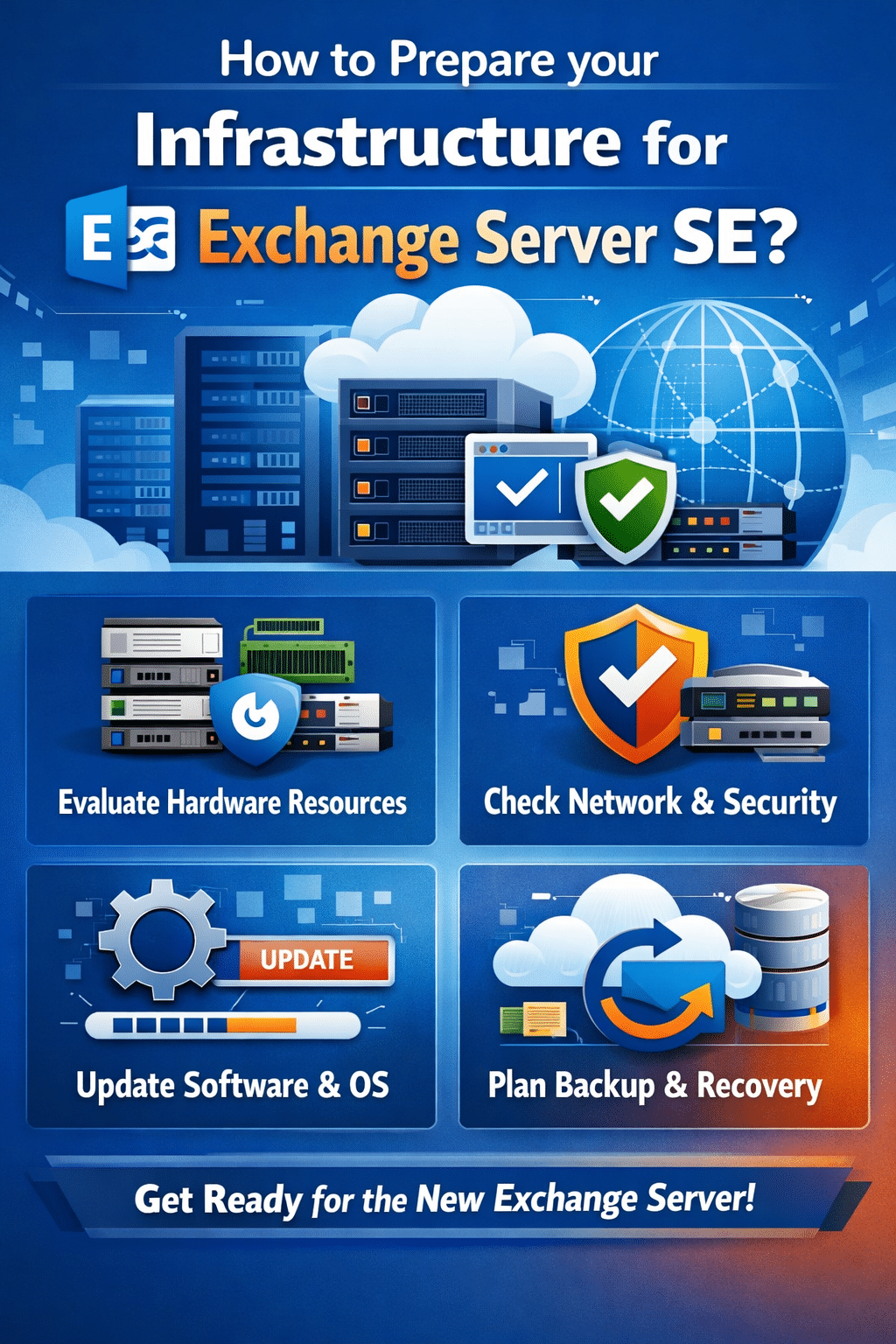


On October 14, 2025, Microsoft confirmed that they will no longer release updates for Exchange 2016 and 2019. This ended Microsoft’s perpetual licensing model and ushered Exchange Server users into a new era of subscription-based licensing.
Exchange Server Subscription Edition (SE), released on July 1, 2025, is now the only version of Exchange eligible for Microsoft updates. It operates under Modern Lifecycle Policy and requires yearly license renewal by users. Therefore, anyone on Exchange 2016 and 2019 needs to prepare their infrastructure for SE upgrade to receive critical updates from Microsoft. But before that, they need to install the required CUs to unlock an upgrade path, which we will discuss next.
Unlocking Upgrade Paths to Exchange Server SE
Before upgrading Exchange Server 2016 and 2019 to Exchange Server SE, you need to install the following CUs:
- For Exchange Server 2016, you need to install CU23. After this installation, this server can coexist with Exchange SE in the same Active Directory (AD) forest. This allows for legacy upgrade, in which, mailboxes are migrated to this new SE server and the Exchange 2016 servers are decommissioned.
- Exchange Server 2019 needs to have CU14/15 installed. With this update installed, you can directly upgrade Exchange Server 2019 to Exchange SE by performing an in-place upgrade.
Prepare Infrastructure for Legacy Upgrade: Exchange 2016 CU23 to Exchange Server SE
An upgrade from Exchange Server 2016 CU23 to SE can be done with legacy upgrade method. For an Exchange Server 2016 already on CU23, you need to install Exchange Server SE on a new server side-by-side. After that, you can migrate mailboxes to the SE server. Below is a plan to prepare your infrastructure to perform this upgrade:
- Check system requirements
Review the official Exchange SE system requirements for supported operating systems, memory, CPU, disk, and network specifications. Confirm if your target server’s hardware meets Microsoft’s recommendations. If it doesn’t meet the requirement, upgrade the hardware of the server on which Exchange SE will be installed.
- Full backups of Exchange and Active Directory
Ensure you have recent, tested backups of both Exchange databases (including EDB files and logs) and Active Directory before installing SE. Use trusted backup solutions like Windows Server Backup (WSB). After that, try to restore Exchange using that backup.
- Prepare Active Directory schema and domains
Follow the steps in this link to update your Active Directory schema, configuration containers, and domain-level permissions. Run the setup with the required parameters (/PrepareSchema, /PrepareAD, /PrepareDomain) from an account with appropriate admin privileges.
- Join a new Windows Server to your existing Active Directory and Install SE
Install Windows Server on a new computer and then join it to your existing Active Directory domain.
- Download and install Exchange Server SE
Download Exchange Server SE from Microsoft’s website and install by running the Setup Wizard.
- Configure certificates and mail connectors
For Exchange services such as Outlook on the web, Autodiscover, and SMTP, you need to install and assign valid SSL/TLS certificates. After that, you need to build/update send and receive connectors. This step is required to ensure proper mail flow in SE that is similar to your older Exchange 2016 environment.
- Move mailboxes from Exchange 2016 to SE
Use PowerShell to migrate user and resource mailboxes to Exchange SE server. Monitor migration using PowerShell cmdlets and resolve any issue to ensure all data migrates successfully.
If you encounter challenges during SE migration, you can use powerful exchange migration tool such as Stellar Migrator for Exchange. It streamlines mailbox migration to the subscription-based Exchange and maintains folder structure reliably during the process. It is equipped with an intuitive interface and robust reporting features. As a result, you are able to monitor the progress of migration to Exchange Server SE easily and resolve any issue that arises timely.
- Redirect mail flow and connectors
Update DNS (MX, Autodiscover) records to route inbound and client mail traffic to the new Exchange SE server. Reconfigure connectors for any third-party gateways or anti-spam systems to send mail through SE.
- Decommission Exchange 2016 and clean up AD
After thorough validation of mail flow and mailbox access on SE, uninstall Exchange 2016 from old servers. Use standard uninstallation procedures and remove any remaining Exchange objects such as servers and connectors from Active Directory.
Preparation for In-Place Upgrade: Exchange Server 2019 CU14/15 to SE
In-place upgrade from Exchange Server 2019 CU14/15 to SE is much more straightforward than legacy upgrade. Below are the preparation steps for the in-place upgrade:
- Ensure that you meet system requirements
Evaluate the official Exchange SE system requirements provided by Microsoft for supported operating systems, CPU, RAM, disk, and network specifications. Ensure that your target server meets these requirements.
- Take complete backups of Exchange and Active Directory
Prior to beginning the upgrade, you need to make sure you have a recent backup that is tested. The backup should consist of both Exchange databases (including EDB files and logs) and Active Directory. It is essential that you utilize a trusted backup solution like Windows Server Backup and do a training run in which you restore the backup successfully before starting the upgrade.
- Download Exchange Server SE
Download Exchange Server SE from Microsoft’s website
- Perform In-Place Upgrade to Exchange Server SE
Upgrading to Exchange Server SE from Exchange 2019 is like installing a CU. Follow the steps in the article below to install Exchange Server SE: https://learn.microsoft.com/en-us/exchange/plan-and-deploy/install-cumulative-updates
Conclusion
As of now, Exchange Server Subscription Edition installation is crucial to keep on-premises Exchange Server running securely. However, upgrading to SE is not straightforward. It requires you to prepare your current Exchange infrastructure accordingly.
The preparatory steps in this article can help you transition from Exchange 2016 and 2019 to SE smoothly. But performing these steps can take a long time. To simplify SE installation, you can use Stellar Migrator for Exchange to migrates mailboxes directly from Exchange Server 2016 and 2019 to Exchange SE. Not only that, it can even migrate mailboxes from earlier versions of Exchange (2010 and 2013) to Exchange SE with 100% precision and zero downtime.